
Integrating Passkeys with Spring Authorization Server, Spring Cloud Gateway, and React
The End of Passwords?
Passkeys are a modern replacement for passwords that offer a safer and easier login experience. You authenticate using the same biometrics or PIN you use to unlock your device, such as FaceID, TouchID, or Windows Hello. Under the hood, passkeys rely on WebAuthn/FIDO2 and asymmetric public-key cryptography, a system where your device generates a private–public key pair: the private key remains securely on your device, and the public key is shared with the server. When you log in, your device proves it holds the private key without ever revealing it, making passkeys resistant to phishing and data breaches.
But how does it work?
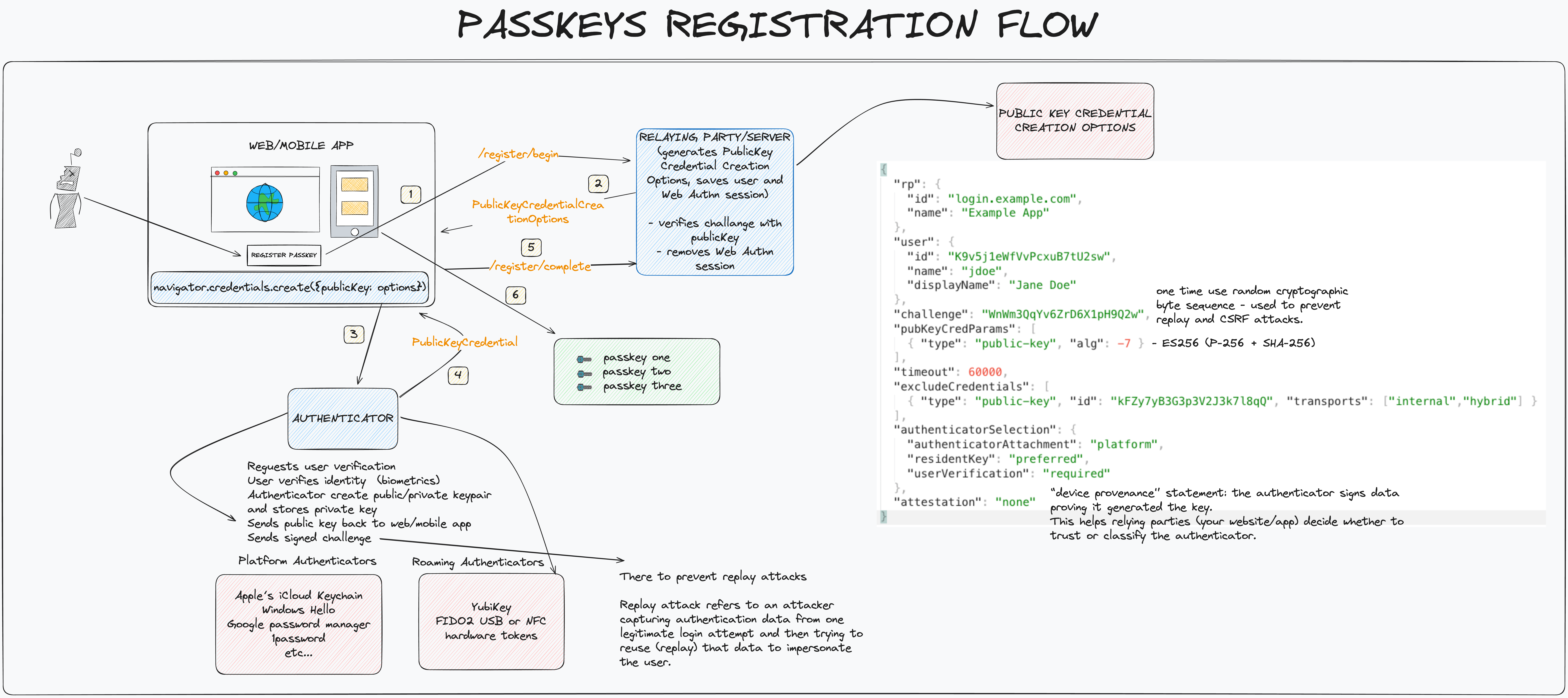
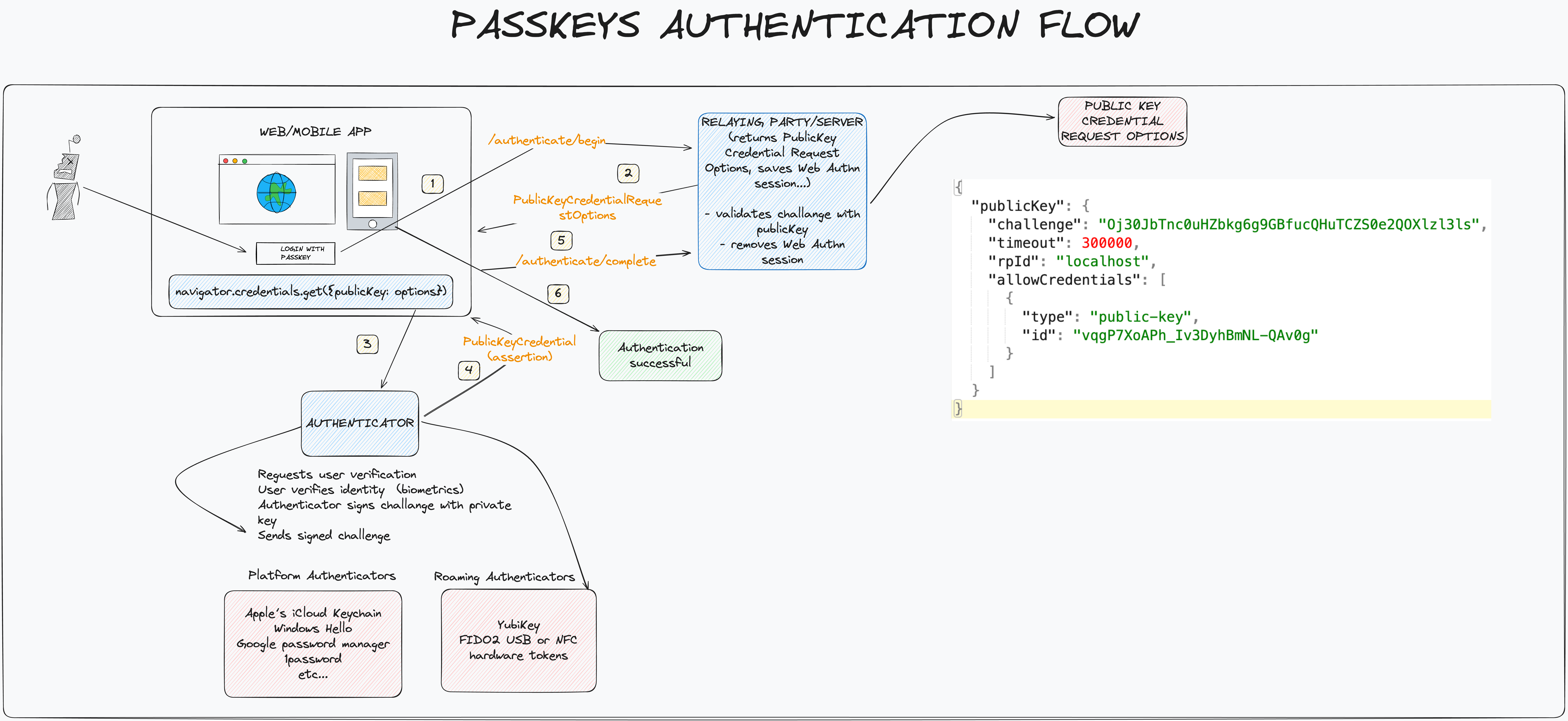
I’ve made some drawings in the excalidraw app. You can find it here. Or look at the images below.
Registration flow:
Authentication flow:
I’ve implemented passkey service using Golang, you can find it here.
Ok, let’s now see how to connect it with Spring authorization server, Spring cloud gateway, and React.
Here is the sequence diagram:
User is logged in and adds a passkey User->>FE: Click "Register Passkey" %% Step 1: Fetch Challenge FE->>GW: POST /registration-begin GW->>PS: POST /api/register/begin PS-->>GW: Returns Challenge & Options GW-->>FE: Returns Challenge & Options %% Step 2: Sign Challenge FE->>User: Prompt Biometrics (TouchID/FaceID) User->>FE: Sign Challenge (Private Key) %% Step 3: Submit Credential FE->>GW: POST /registration-finish/{name} GW->>PS: POST /api/register/finish?passkeyName=... %% Step 4: Verification PS->>PS: Verify Signature & Store Public Key PS-->>GW: Success GW-->>FE: Success Message end rect rgb(255, 245, 235) note right of User: Passkey Authentication Flow
User logs in using existing passkey User->>FE: Click "Login" FE->>GW: Redirect to /oauth2/authorize GW->>AS: Proxy Authorization Request AS-->>User: Serve Login Page %% Step 1: Identify User & Get Challenge User->>AS: Enter Username / Start Passkey Login (POST /auth/webauthn/begin) AS->>PS: POST /api/authenticate/begin (Request Assertion Options (Challenge)) PS-->>AS: Returns Challenge %% Step 2: Sign Challenge AS-->>User: Challenge sent to Browser User->>User: Prompt Biometrics (TouchID/FaceID) User->>AS: Signed Challenge (with Private Key) %% Step 3: Verify AS->>PS: Validate Signed Assertion (POST /api/authenticate/finsih) PS-->>AS: Validation Result (OK) %% Step 4: Finalize AS->>AS: Establish Session & Issue Tokens AS-->>GW: Redirect back (with Auth Code) GW->>GW: Exchange Code for Tokens (Token Relay) GW-->>FE: Login Success / App Loaded end
Registration Flow
The React client calls the Gateway to start registration flow. The Gateway proxies request to the Passkeys Service, which generates registration options. The browser receives the options which include challenge (random byte sequence used to prevent replay and CSRF attacks) and prompts the user for biometrics (FaceID/TouchID). The device creates a new public/private key pair and signs the challenge using the private key. The frontend sends the new public key and the signed challenge back to the Gateway, which forwards it to the Passkeys Service. The Passkeys Service verifies the signature. If valid, it stores the public key for the user’s account, completing the registration.
Authentication Flow
The user enters their username on the Auth Server’s login page. The Auth Server asks the Passkeys Service for a login challenge for that specific user. Auth Server sends the challenge to the browser. Prompt is presented to the user to authenticate with biometrics, and device signs the challenge using the private key stored during the registration flow. The signed challenge is sent back to the Auth Server, which passes it to the Passkeys Service for validation against the stored public key. Once the Passkeys Service confirms the signature is valid, the Auth Server issues the standard OAuth2 tokens. The Gateway handles the token exchange and logs the user into the application.
And that’s that. The complete code is available here. I hope you enjoyed reading this post and I hope you’ll find it useful.